Build a custom review queue around a DOCX editor
Build Show, Accept and Reject controls around the current SuperDoc tracked-change controller and a complete downloadable project.
See it in SuperDoc
Own the review controls.
Observe the document, decide the exact proposal and inspect the saved Word file.

Original vector illustration, retained as SVG and a lossless 2400 by 1500 PNG. The linked browser project uses SuperDoc 2.30.0. Separate SDK 2.27.0 checks exercise saved-file review. Backend authorization and Word desktop rendering remain application evaluation steps.
Try the live demoDownload the LinkedIn image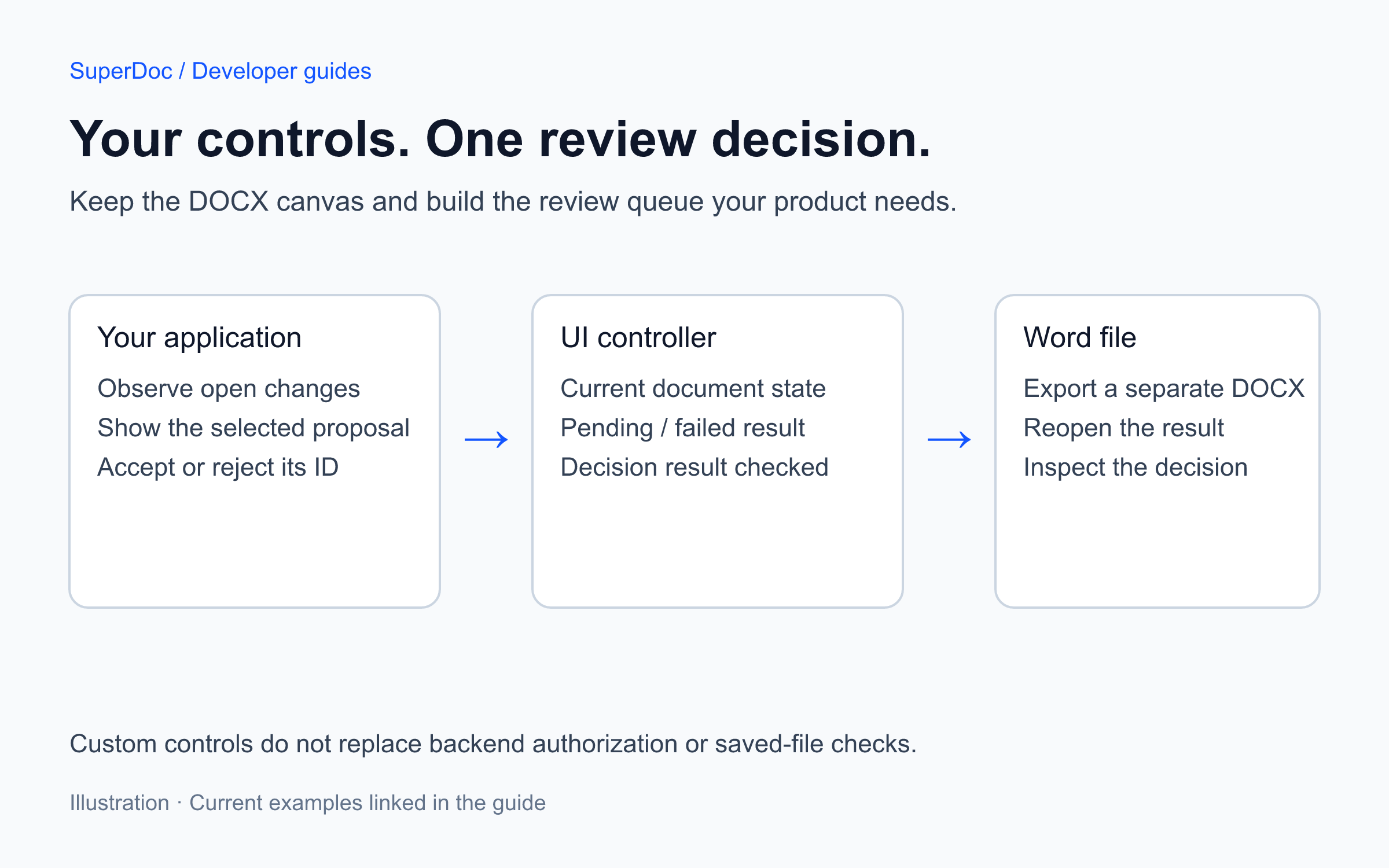
Published 2026-11-12T01:42:24.217Z. By SuperDoc.
A contract reviewer needs to see a proposed change, jump to its location and decide whether it belongs in the agreement. Your product may already have a task sidebar and its own buttons. You should be able to keep that interface around the DOCX editor.
Start by choosing which controls your application owns. You can replace one surface while retaining SuperDoc's document canvas and the remaining built-in controls.
Start with a working review queue
Open the custom review example. The editor keeps its formatting toolbar. Your application renders the tracked change list beside the document, with Show, Accept and Reject on each row.
Choose Show to reveal the relevant passage before deciding. Accept or reject one proposal, watch its row disappear and export the DOCX. This turns “bring your own UI” into a concrete workflow you can adapt.
Download the complete project, extract it, and run these commands inside the extracted directory with Node.js 22 or newer:
npm install
npm run dev
npm run check
The browser project pins superdoc to 2.30.0. Separate saved-file accept and reject checks ran with SDK 2.27.0. The project includes the public agreement, full HTML, styles, export helper and TypeScript. The source companion exposes those same files for agents and readers.
Observe the document instead of copying its state
The example initializes the editor in Suggesting mode and subscribes after it is ready:
onReady: ({ superdoc }) => {
  const stop = superdoc.ui.trackChanges.observe(({ items, total, listStatus }) => {
    count.textContent = listStatus === 'ready'
      ? `${total} open changes`
      : 'Reading changes…';
    list.replaceChildren(...items.map(row));
  });
  window.addEventListener('pagehide', () => {
    stop();
    superdoc.destroy();
  }, { once: true });
}
Here, count, list and row belong to the application. The complete project supplies them. The subscription keeps the list aligned with current document changes, including decisions made elsewhere in the editor.
Do not keep a separate “accepted” flag as your source of truth. Render the controller's current state and handle loading or unavailable actions explicitly.
Decide the exact change shown in the row
Each row keeps the change ID and its story address:
const review = superdoc.ui.trackChanges;
const target = { id: change.id, story: change.address?.story };
const result = await review.acceptAsync(target);
if (result === false || (result !== true && !result.success)) {
  throw new Error('Review decision failed. Check the document before trying again.');
}
The complete example uses rejectAsync() for Reject and scrollTo() for Show. It disables the decision buttons while an action is pending, reports a failed result and restores the controls afterward. A resolved promise alone does not establish that a decision succeeded.
For a reusable toolbar control rather than a review sidebar, start with the current first-control guide. It shows how to move Bold into your application while leaving the remaining toolbar in SuperDoc. Current React hooks come from superdoc/ui/react; do not copy historical @superdoc-dev/react or headless-toolbar imports into a new integration without checking the current API.
Keep interface ownership separate from authorization
ui controls what SuperDoc renders. It does not prove who may read a document, save an edit or decide a tracked change. Suggesting mode records new edits as proposals; it does not by itself reserve accept and reject decisions for a particular reviewer.
Use the interaction and permissions guide to configure available browser actions, and enforce your application's actual policy where the server accepts files, operations or collaboration updates. Custom controls must respect the controller's available actions and returned result too.
The sample hides the built-in comments interface to make the review queue easy to inspect. That choice does not remove comments from the Word file. Choose the comment surface that fits your product, rather than inferring document permissions from a hidden panel.
Finish with the exported agreement
After accepting one change, export a separate DOCX and reopen it. The accepted text should remain and the proposal should no longer need a decision. Repeat with Reject from a fresh source. Keep those two outcomes distinct.
For a tested saved-file accept and reject workflow, continue with the Word review guide. Browser interaction checks and SDK reopening are useful evidence; evaluate Word rendering and your application's authorization with your own representative files before shipping.
Source and update context
Adapted from Caio Pizzol's Bring your own UI announcement, May 1, 2026 and Headless Toolbar announcement, April 10, 2026. Rewritten November 11, 2026 around the complete 2.30.0 review project and current V2 controller documentation. The original announcements retain their dates and attribution in the archive.
Content ID: 548d3ecff5d44ba8dd495aac91bebc46df683f457beef93a2ac33b52224f1b12